
A common question asked by KS customers is how to present the topic of skills testing to your teams.
Here is an example of a recent customer mail:
"Do you have experience with encouraging employees to take the assessments? We want to encourage staff without being off-putting or making it seem like the point of the exercise is to determine their tenure within the organization.
What do you think is the best approach to engage our staff? Do you give it a different name besides assessment?
Your assistance is greatly appreciated."
Here is our reply...
The key to your communication is to emphasize the 'What's in it for me?' aspect of the assessments. No-one likes to take tests. As human beings, we'll avoid it where at all possible! But, conversely, people are curious as to how well they are doing. And they want to improve. Also, they don't know what they don't know. Or how they measure up to their peers and wider industry. So you need to focus your message on the training needs side of the learning path. You can't take them on a focused training journey, if you don't know their starting off point. And you can't assume everyone knows the basics, therefore deserves advanced training. They need to prove it.
When you have a clear firm benchmark, you can also hire more confidently and intelligently. Which is good news for incoming staff and existing teams.
So don't make the assessments optional. This needs to be managed and mandatory, but with a light touch. And the results need to be analysed and fed into a relevant training plan.
Also, people have a natural fear of failure. So make it clear that nothing bad will happen if they screw up. They don't need to feel apprehensive or nervous. This is about positive improvement, not picking on people who happen to have gaps in their knowledge.
And make it clear that the results are confidential. Only to be accessed by people with a position of responsibility for leadership and staff development.
Here is a useful User FAQ guide, which will help you shape your communications in this space:
WHAT IS KNOWLEDGESMART?
KnowledgeSmart is a web-based skills assessment tool, which enables architectural and engineering practices to measure the software skills of their teams. Since 2003, by carrying out in excess of 30,000 individual assessments globally, a helpful independent benchmark has been established for basic proficiency, across a range of subjects.
Here is a microsite which provides helpful industry benchmark data for our Top 5 skills assessment topics: http://www.2dim4bim.com.
The KnowledgeSmart tools help to identify skills associated with design and engineering software applications, such as AutoCAD, Civil 3D, Plant 3D, Revit, Inventor, MicroStation, ProjectWise, 3ds Max, ArchiCAD, Primavera P6, Adobe Photoshop, Adobe InDesign, SketchUp and Rhino. The process aims to assess current performance in order to identify areas where individuals can benefit from additional training.
WHAT IS THE POINT OF KNOWLEDGESMART AND WHY SHOULD I DO IT?
This process is not about a big-brother style test to check up on unsuspecting users. Nor is it a matter of pointing out who is the more knowledgeable software user. Rather, the point of the exercise is to highlight how much each individual currently knows – in order to identify those areas where focused training can improve basic knowledge.
Everyone uses software in a different way. Some people use these tools full time in their role; others may only use the tools from time to time. The objective is not to teach a veteran user how to perform basic tasks. But the fact remains, a more detailed knowledge of basic commands and operations can alleviate apprehension in using technical software applications and assist in speeding up routine tasks.
IS IT THE SAME ASSESSMENT FOR EVERYONE?
There are a number of assessment modules to choose from, created by a team of expert authors. Firms can also create their own material in-house. For Revit skills, as an example, there is a choice of material, ranging from introductory level, all the way up to more advanced concepts. Summary reports take into consideration whether an individual is a full time user, or someone who only uses the software occasionally as part of a wider role. Follow-up comparisons and training recommendations should be reflected accordingly.
WHAT KIND OF TOPICS DOES EACH ASSESSMENT COVER?
KnowledgeSmart assessments typically break down complex technical software applications into a series of stages or modules.
For example, the fundamentals assessments (for AutoCAD & MicroStation) cover a range of basic commands, including; basic object/element creation, layers/levels, blocks/cells, annotation, referencing & printing, UCS/ACS and preferences.
Assessments typically comprise 20-30 questions and present scores as a percentage, based on the accuracy of the answers presented. There are 2 question types and 9 question styles. Question types are either task-based (i.e. you need to perform a task using the software in order to work out the answer) or knowledge-based (i.e. you are being evaluated on your understanding of certain software functions, without having to actually use the tools). Question styles include; Free text, Multiple choice, Pick list, Order list, True or false, Complete the blank, Matching list, Matrix and Essay.
WHAT IF I DO NOT SCORE VERY WELL?
This exercise is not about who is the best. You will identify areas where you can improve your own performance with the help of more targeted training workshops.
Following the assessment everyone receives an overall result and summary report with feedback on dropped marks, training recommendations and coaching notes.
WHEN AND WHERE WILL THE ASSESSMENT TAKE PLACE?
Your administrator will have details of your assessment program. If you are unavailable to make the date or time arranged please contact your administrator to reschedule.
HOW LONG DOES IT TAKE?
There is no limit to how long the exercise will take. The average time is approximately an hour, but this is not a strict rule.
Try to work at your usual speed. Don’t rush, as many simple mistakes are made by people not reading the instructions carefully. Conversely, don’t take too long to complete each task, as your score plus time taken will be looked at in the overall results analysis.
WHEN DO I GET MY RESULT?
You will receive your score straight away when you finish the assessment. You may also be emailed with a link to your assessment report, including feedback on any marks which have been dropped.
ADDITIONAL INFORMATION
The amount of time you take will not affect the accuracy of your score.
Before you start, you may be presented with a zip folder containing files which you’ll need to refer to during your assessment. Save the zip folder locally on your machine and extract the sample data sets from the zip. And remember where you save it – as you will need to navigate back to this folder during your assessment!
Please read the written instructions carefully for each question. This is also an assessment of your ability to follow instructions. Often, marks are dropped through candidates simply not doing what they have been asked to do.
During your assessment session, you can answer the questions in any order, using the KnowledgeSmart question navigator. You can also edit your answers during the session and review your work once more at the end, before you select Finish.
The time taken to complete an assessment varies depending on the individual, but an average is about an hour. You don’t have to complete the assessment in one sitting; you can log out and return later if you prefer. When you resume, your previous answers will have been saved.
R
Showing posts with label Managing your users. Show all posts
Showing posts with label Managing your users. Show all posts
Friday, 21 April 2017

Saturday, 17 March 2012
KS Help Notes_Users 02_Search & Group Users
SEARCHING & GROUPING YOUR KS USER DATA
You can filter your user data in the Users > Users area of your dashboard, by searching on a variety of fields, such as name, email, status and the information captured in the 5 user datafields.
Please note that changes made to the data on the Users page will have no impact on your test results data.
Use the drop-down menu to view user data for linked accounts.
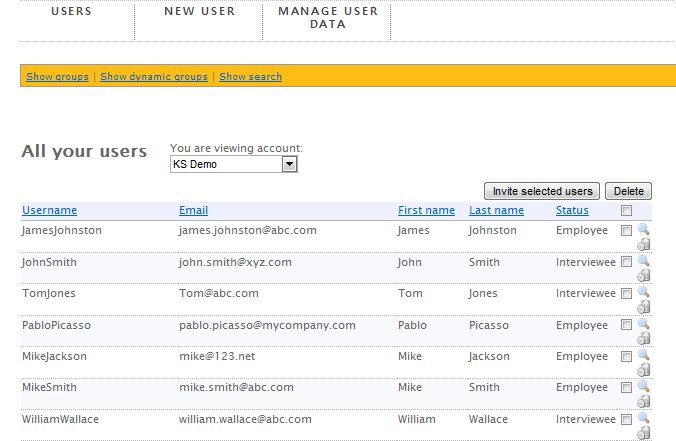
Select the Show search link in the orange bar, at the top of the Users page.

You'll see the five user datafields on the right hand side of the search box.

Step two
Enter the information in the relevant search field and hit Search to filter your user data. Use the check boxes to select your user records for the new group.

Step three
Select the Show groups link in the orange bar.

Step four
Use the Create New Group tool to create a new sub-group of your users, based on the output of your search. Once you have selected your users, type in the name of the new group and hit Create.


Use the View group dropdown menu to navigate between sub-groups of your user data.

Dynamic Groups
Use the dynamic grouping tool to create new groups, which will automatically update when new user records are added to your dashboard.
Step one
Select the Show dynamic groups link in the orange bar.

Step two
Use the New Group tool to create a new dynamic grouping of your results. Enter the group name in the field provided.

Use the 5 datafield dropdowns to create the rules you require, for adding existing and future user records to your group. Save your new dynamic group, by selecting Save Group.
For example, a user group has been created based on datafield 1, City: New York. The next time a new user is added to the database and the associated user record includes datafield 1, City: New York, then the user record will automatically be added to the existing group.

Step four
Use the View dynamic group dropdown menu to navigate between sub-groups of your user records.

Click here to read a help sheet about inviting users to take a KS assessment.
R
KS Help Notes_Users 01_Building your User List
BUILDING YOUR USER LIST
KS administrators can upload a list of users into their dashboard and capture additional data against each user record, which can be used for searching and grouping users and test results.
Here's how the process works:
Step one
Log in to your admin dashboard and select Users from your navigation tools.

Click on the Upload User Data link and take a look in the 'Help' notes box on the right hand side. Tucked away in paragraph four is a link to a sample csv file, which you can use to build your list of users.

Step three
Copy your user list from Excel, into your csv file. You need the following fields: Email, First name, Last name. You can also capture user status and 5 additional data fields for information of your own choosing. For example, employee ID, project team name, office location, job title, industry discipline, etc. Think of information you might like to use, when searching and filtering your user or results data later on.

Step four
Browse for your completed csv file and use the Upload tool to add your user list to your KS dashboard.

Your list of users can be viewed on the Users > Users page. To remove a user record, check the box next to the user name and hit the Delete button.


Click on the magnifying glass icon, next to the user name (far right of the row), to add to or edit the 5 user datafields and to change the status of your users (i.e. from interviewee to employee, or employee to ex-employee).


Please note that changes made to the data on the Users page will have no impact on your test results data.
R
Subscribe to:
Posts (Atom)

 Posts
Posts

