Showing posts with label Taking a skills assessment. Show all posts

Saturday, 17 March 2012

KS Help Notes_Invites 01_User Guide to Taking an Assessment


TAKING A KS ASSESSMENT


Most assessment invites are sent by email. Or you might log directly into an assessment session via a browser. Either way, you will find your way to the start page.

Here is a typical KS invite:


The KS system assigns a username and password to each user. You can access your assessment by clicking the link at the bottom of the invite mail.  This takes you to the assessment login page, where you will be prompted to enter your username and password.
(NB if you lose or forget your KS password, hit the Reset password link to receive a new one by email).


Hit the Log in link and you may be presented with an additional information page, where you can submit a brief user profile.


Click Continue and you arrive at the main assessment start page. Here you will see a summary of the assessment you are scheduled to take and any special instructions from your system administrator.

At this point, open up your copy of the software, for which you are taking an assessment.


There are 9 types of questions, which typically comprise a KS assessment. Let's take a brief look at each one:

Free Text
This type of question requires a specific answer, which needs to match the answer stored in the KS database. Look out for precise instructions on how to format your answer, for example, precision, case sensitive answers, spacing, accurate spelling, and so on.


Multiple Choice
Here, you will be offered a selection of possible answers - and you need to select the best one. Watch out for 'distracter' entries, which are designed to make you think before selecting your answer.


Pick List
This question type offers you a range of options, which could represent a correct answer. Choose the best answers from the list provided, using the check boxes, to the left of the answers. Partial marks are often awarded for entering some of the correct answers.


Order List
This question type requires you to place a number of items in the correct sequence. Drag and drop the answer options, until they are in the right order.


True or False
This question type is pretty straightforward. Read the statement or question and decide if you think it is true or false.  Enter your answer using the radio buttons.


Matching List
This question type asks the user to correctly identify, or match the relationship between 2 lists of data.


Complete the Blank 
This question type asks the user to fill in one (or more) blank fields, or select from a list of available options in a sentence or paragraph.


Matrix 
This question type asks the user to review a list of short words or phrases and select a radio button option that relates to the ‘correct’ description. 


Essay 
This question type asks the user to write a longer answer to a question. This will not be automatically marked and requires manual scoring by system admins.


OK, so when you arrive at the start page, before you begin, you might need to download some sample data files to use during your assessment. The usual way is to select the orange, Download files button.


Clicking the orange button prompts you to extract and save the files locally on your work station. You will need to navigate back to this folder during your assessment, so most people choose their desktop, or My Documents, etc. The data sets do not need to be saved during a session, so can simply be deleted after the assessment has been completed.


Sometimes firms choose to zip up all sample test files and host them locally, on their own servers. If this is the case, then the orange button will not display. Instead, your administrator will provide special instructions on the assessment start page, explaining which file path to follow, in order to find the files.

Either method is fine - you simply need to know which folder to navigate to, in order to access the files for your set of assessment questions.

When you have opened your software, located your sample files and read any other instructions from your administrator, hit the green Start button and your assessment will begin.


Each assessment is timed, although the time taken to finish does not impact your overall score. The assessment user interface (UI) is easy to navigate. All sessions start on question one. There is also a small timer, which allows you to keep track of how long you are taking during your session.


Each question has a name and brief summary, which explains the main features of the software being addressed.


If a question is task-based, i.e. the user has to use the software in order to answer the question, the corresponding sample data set can be found in the zip folder you downloaded at the start. The orange instruction box explains where to find the files for each question.  (Quick tip: the files for task based questions share the same name as the question, to which they belong).


You can answer the questions in any order. The 'Question Navigator' allows you to move around the questions and generally familiarise yourself with the exercises. The simple color code helps you to keep track of your progress. Green squares indicate questions for which an answer has been submitted. Orange represents the current question. Red squares are questions that have yet to be attempted.


If you make a mistake, you can re-visit the green squares at any time, to edit your answers.

Some system administrators include the option to ‘skip’ questions and/or ‘request training’.  You will see additional buttons appearing on the test UI, if either feature is enabled.

An assessment finishes when all the questions have been answered. (Sometimes, an administrator will set a time limit for an assessment, in which case the session will automatically close after that time has elapsed. Answers submitted will be marked and any questions which have not been attempted will be scored as zero).

You have one last opportunity to review and edit your answers, before hitting the green Finish button, which triggers your assessment to be graded.


Next, you may be presented with another user profile page, as your assessment is being marked.


When the session is finished, you will receive a summary report, with feedback on any dropped marks. The level of feedback received can vary, depending on the settings prescribed by your account administrator.


A helpful summary of the questions, feedback on incorrect answers, coaching notes and training tags may be viewed, by selecting the Show question detail link at the top of your summary report.


The training tags (for questions where marks were dropped) combine to form a personal curriculum of suggested training workshop topics.

R

Friday, 16 March 2012

KS Help Notes_Library 05_9 Question Types


KS QUESTION TYPES


There are 9 types of questions, which typically comprise a KS assessment. Let's take a brief look at each one:

Free Text 
This type of question requires a specific answer, which needs to match the answer stored in the KS database. Users must pay attention to any instructions on how to format their answer, for example, precision, case sensitive answers, spacing, accurate spelling, and so on.


Multiple Choice

Here, users will be offered a selection of possible answers - and they need to select the best one. Watch out for 'distracter' entries, which are designed to make them think before selecting their answer.


Pick List
This question type offers users a range of options, which could represent a correct answer. They should choose the best answers from the list provided, using the check boxes, to the left of the answers. Partial marks are often awarded for entering some of the correct answers.


Order List
This question type requires users to place a number of items in the correct sequence. They need to drag and drop the answer options, until they are in the right order.


True or False
This question type is pretty straightforward. Users must read the statement or question and decide if they think it is true or false. Enter the answer using the radio buttons.


Matching list 
This question type asks the user to correctly identify, or match the relationship between 2 lists of data.


Complete the blank 
This question type asks the user to fill in one (or more) blank fields, or select from a list of available options in a sentence or paragraph.


Matrix
This question type asks the user to review a list of short words or phrases and select a radio button option that relates to the ‘correct’ description.


Essay 
This question type asks the user to write a longer answer to a question. This will not be automatically marked and requires manual scoring by system admins.


R

KS Help Notes_Admin 06_Support Ticket System


SUPPORT TICKET SYSTEM


If you have any technical support issues, the fastest way to receive a response is to raise a support ticket, using the integrated KS Support Ticket System.

Log into your KS dashboard and select the Support link, which is located at the foot of each page.


If you haven’t registered on the support system, click the Register link and create your user profile.  Please note that your login information for the support system can be the same as your KS admin dashboard user login information, or, if you prefer, you can create a different user profile.


To log in to the support system, click on the Log In link and enter your username and password.


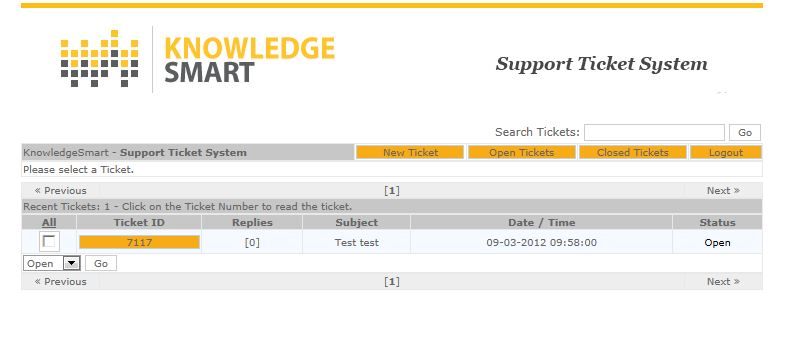
To create a support ticket, select the New Ticket link and provide a summary of your query in the space provided.  You can add accompanying files or screenshots, by browsing for the file and adding as an attachment.

Hit the Submit button to send your ticket to the KS technical support team.


Your ticket will be assigned an ID number, which you can use to track your support query, until it is resolved.  Click on the Open Tickets link to monitor progress of any outstanding issues and communicate with the KS technical support team.


Use the Search Tickets tool to locate support tickets relating to specific keywords.


You can re-open old tickets at any time, by selecting the Closed Tickets link and clicking on Reopen Ticket.


When you have finished adding or amending your support ticket information, select the Logout link, to exit the KS Support Ticket System.

R

KS Help Notes_Admin 04_Logging in to the Dashboard


LOGGING IN TO THE KS DASHBOARD


How do KS administrators access and log in to the KS system?

Go to the KS website homepage (www.knowledgesmart.net) and click on the CUSTOMER LOGIN link, top right.


This takes you to the KS admin dashboard landing page.  Here is the direct link:  https://online.knowledgesmart.net.


To access your KS admin dashboard, click on the Admin Dashboard link.  Enter your administrator User name and Password and hit the Log in button.  (NB KS usernames are usually FirstnameLastname).


And that's it.  You are now logged in to your KS dashboard. The first page you will see is the Library > Published Content > KS Tests page, which lists all of the 'off the shelf' tests available on your account.


R

KS Help Notes_Admin 03_User FAQ


CANDIDATE INTRODUCTION AND FAQs


WHAT IS KNOWLEDGESMART?

KnowledgeSmart is a web-based skills assessment tool, which enables architectural and engineering practices to measure the software skills of their teams. Since 2003, by carrying out in excess of 25,000 individual assessments globally, a helpful independent benchmark has been established for basic proficiency, across a range of subjects.

The KnowledgeSmart tools help to identify skills associated with design and engineering software applications, such as AutoCAD, Civil 3D, Plant 3D, Revit, Inventor, MicroStation, 3ds Max, ArchiCAD, Adobe Photoshop, Adobe InDesign, SketchUp and Rhino. The process aims to assess current performance in order to identify areas where individuals can benefit from additional training.

WHAT IS THE POINT OF KNOWLEDGESMART AND WHY SHOULD I DO IT?

This process is not about a big-brother style test to check up on unsuspecting users. Nor is it a matter of pointing out who is the more knowledgeable software user. Rather, the point of the exercise is to highlight how much each individual currently knows – in order to identify those areas where focused training can improve basic knowledge.

Everyone uses software in a different way. Some people use these tools full time in their role; others may only use the tools from time to time. The objective is not to teach a veteran user how to perform basic tasks. But the fact remains, a more detailed knowledge of basic commands and operations can alleviate apprehension in using technical software applications and assist in speeding up routine tasks.

IS IT THE SAME ASSESSMENT FOR EVERYONE?

There are a number of assessment modules to choose from, created by a team of expert authors.  Firms can also create their own material in-house. For Revit skills, as an example, there is a choice of material, ranging from introductory level, all the way up to more advanced concepts.

Summary reports take into consideration whether an individual is a full time user, or someone who only uses the software occasionally as part of a wider role. Follow-up comparisons and training recommendations should be reflected accordingly.

WHAT KIND OF TOPICS DOES EACH ASSESSMENT COVER?

KnowledgeSmart assessments typically break down complex technical software applications into a series of stages or modules.

For example, the fundamentals assessments (for AutoCAD & MicroStation) cover a range of basic commands, including; basic object/element creation, layers/levels, blocks/cells, annotation, referencing & printing, UCS/ACS and preferences.

Assessments typically comprise 20-30 questions and present scores as a percentage, based on the accuracy of the answers presented.  There are 2 question types and 9 question styles.  Question types are either task-based (i.e. you need to perform a task using the software in order to work out the answer) or knowledge-based (i.e. you are being evaluated on your understanding of certain software functions, without having to actually use the tools).  Question styles include; Free text, Multiple choice, Pick list, Order list, True or false, Complete the blank, Matrix, Matching list and Essay.

WHAT IF I DO NOT SCORE VERY WELL?

This exercise is not about who is the best. You will identify areas where you can improve your own performance with the help of more targeted training workshops.

Following the assessment everyone receives an overall result and summary report with feedback on dropped marks, training recommendations and coaching notes.

WHEN AND WHERE WILL THE ASSESSMENT TAKE PLACE?

Your administrator will have details of your assessment program. If you are unavailable to make the date or time arranged please contact your administrator to reschedule.

HOW LONG DOES IT TAKE?

There is no limit to how long the exercise will take. The average time is approximately an hour, but this is not a strict rule.

Try to work at your usual speed. Don’t rush, as many simple mistakes are made by people not reading the instructions carefully. Conversely, don’t take too long to complete each task, as your score plus time taken will be looked at in the overall results analysis.

WHEN DO I GET MY RESULT?

You will receive your score straight away when you finish the assessment. You may also be emailed with a link to your assessment report, including feedback on any marks which have been dropped.

ADDITIONAL INFORMATION

The amount of time you take will not affect the accuracy of your score.

Before you start, you may be presented with a zip folder containing files which you’ll need to refer to during your test. Save the zip folder locally on your machine and extract the sample data sets from the zip.  And remember where you save it – as you will need to navigate back to this folder during your assessment.

Please read the written instructions carefully for each question. This is also an assessment of your ability to follow instructions. Often, marks are dropped through candidates simply not doing what they have been asked to do.

During your assessment session, you can answer the questions in any order, using the KnowledgeSmart question navigator.  You can also edit your answers during the session and review your work once more at the end, before you select Finish.

The time taken to complete an assessment varies depending on the individual, but an average is about an hour.  You don’t have to complete the assessment in one sitting; you can log out and return later if you prefer.  When you resume, your previous answers will have been saved.

Here’s a short movie which will tell you more: KS user movie.

R

KS Help Notes_Admin 02_Planning your Assessments


ADMINISTRATOR NOTES FOR PLANNING AN ASSESSMENT PROGRAM


COMMUNICATING YOUR PLANS

It is important to explain to candidates precisely why you are asking them to undertake a skills assessment. You might do this by including the assessment in a wider discussion about training needs and more efficient use of technology within your company, including training needs, recruitment, induction and annual appraisals processes.

Improving technical software skills is a continuously improving process – the KnowledgeSmart tools simply highlight a likely starting point. As with most things, good communication goes a long way. An effective strategy is to hold a team meeting and explain your overall plans for improving performance within the business. This can include a Q&A session, where people have an opportunity to clarify any aspects of the assessment process – and understand how it fits into the bigger learning picture.

It is important that people don’t feel that the results of their skills evaluation may be used in a negative context, particularly if they don’t perform well first time around. Ensure they understand this is a designed to be a learning process – and everyone has to start somewhere! By taking a snapshot of each individual’s current skills at a basic level, you can feed this data into your training plans moving forwards.

This is not all about who is the smartest, fastest, or best Revit user.  Or the most experienced MicroStation guru; although these are useful things to know.  The real value in the KS tools is trying to help users, at an individual level, identify what they know and also what they need to brush up on next, in order to improve their skills, with a particular piece of software.

Since 2003, KS has facilitated over 25,000 individual test sessions, across hundreds of AEC firms.  Experience has shown that, in general, people don't like the idea of taking a test - at least that's usually how they feel at first.  However, experience has also shown that, for most people, when they complete their assessment, they realise that it wasn't half as bad as they thought it would be! Further, they often learn new skills as they go through the process of answering the questions.  And lastly, they find the feedback and coaching notes extremely helpful, in giving them an unbiased appraisal of their skills using a particular software application - relative to their peers in industry.  It's important that users have the opportunity to review their test scores and feedback with their technology leaders or learning & development leaders.  And it's also important to explain to your users that all scores are confidential.  Best practice would recommend that only senior administrators should have access to firm-wide results data.

Provided you explain to your teams that the main point of rolling out an assessment program is to gather valuable training needs analysis data, rather than a big-brother style exercise in peeking over shoulders, then most users feel OK about the idea. And when you follow through with more focused, modular training workshops, which target recognised skills gaps, then it's a win-win for users and management alike.

Evidence shows that better overall understanding of basic commands can also benefit the implementation of in-house standards. Once you have presented to your teams the case for measuring and improving skills, you need to set a timeframe for rolling out your assessments.

PREPARE A TIMESCALE

You need to decide over what period of time you want to complete your assessments. This will depend largely on 3 variables; 1) the number of people to be assessed 2) the number of offices in your organisation and 3) general day-to-day work pressures.
You also need to decide what your preferred assessment environment will be. Some companies prefer their teams to use their own work stations, whilst others favour a more formal setting. In truth, there is no right or wrong answer to this question; you want people to feel comfortable and remove any potential for apprehension or pre-assessment nerves.

A formal assessment environment can be helpful, where people simply take an hour or so, away from their desk, at a specified time, to sit their assessment. This way, they aren’t distracted by project work, email, ringing phones or interruptions from colleagues.

For multi-office firms, it is best to start with one location and, when this office is done, gradually ramp up the level of activity until the assessment program is complete. You will need the support of your regional technology co-ordinators if this is to be a success.

PREPARE YOUR TEAMS

We recommend you brief your teams prior to their assessments. You might like to share with them the KS FAQ document and/or KS user video, or perhaps present your plans at a team meeting.  It is best to circulate the information at least day or two before people are due to take their assessments.

SEND YOUR ASSESSMENT INVITES

Use the inviting tools in the KS admin dashboard to manage your assessment program.  You can send invites individually, or create a longer list of users and invite them in groups.

Next, you may customise your welcome message in the invite mail and on the assessment start page.  You might wish to present users with specific instructions on where to locate their sample files (if you have chosen to store them on your own network, for example).

COMPLETE YOUR ASSESSMENTS

Monitor your teams as they complete their assessments. Administrators receive an email with a link to test results, as and when they are completed.

You can use the invite history page of your admin dashboard to track invites and completed assessments.  You can also re-send invites from here.

AFTER THE ASSESSMENTS

KS administrators can decide how much feedback to present to their users.  At the end of their assessment, candidates may receive an instant result and full summary report with a breakdown of their score, training keywords and coaching notes. In addition, they may be sent an email containing a link to their report.

Account administrators can access all assessment results, feedback, training data and coaching notes – for each candidate – in the KS admin dashboard.

Via the admin dashboard, it is possible to search results, view performance charts and export data into Excel for in-house reports. It is important to provide the opportunity for individuals to access a structured training program, after their skills have been evaluated. The results will highlight areas where future training workshops can be focused for maximum improvement.

It can be helpful to schedule a follow up meeting with KnowledgeSmart, to analyze your results data.  If you work with an external training partner, it is a good idea to ask for their recommendations on post-assessment training activity.

R

Wednesday, 20 April 2011

Taking a KS Assessment

It's extremely important for AEC firms to explain to their users precisely why they are being asked to take a technical software skills assessment.  The best firms always handle this well.  As with all things in life, a little bit of good communication goes a long way.

This is not all about who is the smartest, fastest, or best Revit user.  Or the most experienced MicroStation wizard.  Although these are useful things to know.  The real value in the KS tools is trying to help users, at an individual level, identify what they know and also what they need to brush up on next, in order to improve their skills, with a particular piece of software.

Over the past 8 years, we have facilitated over 20,000 individual test sessions, across hundreds of AEC firms.  Experience has shown that, in general, people don't like the idea of taking a test - at least that's usually how they feel at first.  However, experience has also shown that, for most people, when they complete their assessment, they realise that it wasn't half as bad as they thought it would be! Further, they often learn new skills as they go through the process of answering the test questions.  And lastly, they find the test feedback and coaching notes extremely helpful, in giving them an unbiased appraisal of their skills using a particular software application - relative to their peers in industry.  It's important that users have the opportunity to review their test scores and feedback with their team leader or BIM manager.  And it's also important that firms explain to their users that all test scores are confidential.  Best practice would recommend that only senior administrators should have access to firm-wide results data.

Provided firms explain to their teams that the main point of rolling out an assessment program, is to gather valuable training needs analysis data, rather than a big-brother style exercise in peeking over shoulders, then most users feel OK about the idea.  And when firms follow through with more focused, modular training workshops, which target recognised skills gaps, then it's a win-win for users and firms alike.

So let's take a look at the user journey, when asked to complete a KnowledgeSmart skills assessment.

We'll assume the firm has already done the pre-assessment prep - and explained to their teams what is happening and why they are being asked to take an assessment.

The next step is for a user to receive their test invite.  (Here is a separate article on how a KS admin sends out test invites: http://the-knowledgesmart-blog.blogspot.com/2011/04/inviting-users-to-take-ks-test.html).

Admins can set up test sessions straight from a browser, but most invites are sent by email.  Either way, the user ends up in the same place.  Here is a typical KS test invite:


The system assigns a username and password to each user.  They access their assessment by clicking the unique URL at the bottom of their invite mail.  This takes them to the assessment login page, where they will be prompted to enter their username and password.  (If a user loses or forgets their password, they can hit the 'Forgot details?' link to receive a new one).


When they log in, they arrive at the main assessment landing page.  Here they will see a summary of the test they are scheduled to take and any special instructions from their administrator.


There are 5 types of questions, which typically comprise a KS assessment.  Let's take a brief look at each one..

Free Text 
This type of question requires a specific answer, which needs to match the answer stored in the KS database.  Look out for precise instructions on how to format your answer, for example, number of decimal places, case sensitive answers, accurate spelling, and so on.

Multiple Choice

Here, you will be offered a selection of possible answers - and you need to select the best one.  Watch out for 'distractor' entries, which are designed to make you think before selecting your answer.


Pick List
This question type offers you a range of options, which could represent a correct answer.  Choose the best answers from the list provided, using the check boxes, to the left of the answers.  Partial marks are often awarded for entering some of the correct answers on pick list questions.


Order List
This question type requires you to place a number of items in the correct sequence.  Drag and drop the answer options, until they are in the right order.


True or False
This question type is pretty straightforward!  Read the statement or question and decide if you think it is true or false.  Enter your answer using the radio buttons.


OK, so when the user arrives at the landing page, before they begin, they need to download the sample data files that they will be using during their assessment.  There are a couple of ways they might have to do this.  The usual way is to select the orange, 'Download files' button.


This prompts the user to save the files locally on their work station.  They will need to navigate back to this folder during their assessment, so most users choose their desktop, or My Documents, etc.  The data sets do not need to be saved during a test session, so they can simply be deleted after the assessment has been completed.


Sometimes firms choose to zip up all sample test files and host them locally, on their own servers.  If this is the case, then the orange button will not display.  Instead, the admin will provide special instructions on the assessment landing page, explaining which file path to follow, in order to find the sample data sets.

Either method is fine - and the user will achieve the same result!  They simply need to know which folder to navigate to, in order to access the files for their randomly generated set of test questions.

When they have their sample test files and they have read any other instructions from their administrator, they can hit the green 'Start' button and their assessment will begin.


Each assessment is timed, although the time taken to finish does not impact the overall score. The test user interface (UI) is easy to navigate.  All test sessions start on question 1.  There is also a small timer, which allows users to keep track of how long they are taking during their session.


Each question has a name and brief summary, which explains to users the main features of the software being addressed.


If a question is task-based, i.e. the user has to use the software in order to answer the question, then the corresponding sample data set can be found in the zip folder they downloaded at the start.  The orange instruction box explains where to find the files for each question.


Users can answer the test questions in any order.  The 'Question Navigator' allows users to move around the questions and generally familiarise themselves with the exercises.  The simple colour code helps users to keep track of their progress.  Green squares indicate questions for which an answer has been submitted.  Orange represents the current question.  Red squares are questions that have yet to be attempted.


If a user makes a mistake, they can re-visit the green squares at any time, to edit their answers.  A test session finishes when all the questions have been answered.  Users have one last opportunity to review and edit their answers, before hitting the green 'Finish' button, which triggers their assessment to be graded.


(Sometimes, an admin will set a time limit for an assessment, in which case the session will automatically close after that time has elapsed.  Answers submitted will be marked and any questions which have not been attempted will be scored as zero).

When the session is finished, the user may receive a test report, with feedback on any dropped marks.  The level of feedback received can vary, depending on the settings prescribed by the account admin.


A helpful summary of the test questions, feedback on incorrect answers, coaching notes and training tags may be viewed by the user, by selecting the 'Show question detail' link at the top of their summary report.


The training tags for questions where score = < 100%,  form a personal curriculum of suggested training workshop topics.

R