Showing posts with label KS devs. Show all posts

Saturday, 11 June 2016

KS Dev Update - New Survey Tool

Over the past 6-12 months, the number one most requested new feature from KS customers has been to include the ability to create surveys, as well as assessments, direct from the KS admin dashboard.

So, we have been working on creating a 'survey mode' area, which enables KS admins to deploy a standalone survey, or a hybrid combined test/survey, with a mix of standard test questions and questions which do not require a 'right or wrong' answer.

Here's a walk through of the new tools:

Log in to the KS admin dashboard, in the same way as usual, but note the addition of a new 'Survey' button on the main login page:


When you log in to the admin dashboard, you'll see a new feature top right of the page. Hover over the 'Current mode' text and you'll see this popup menu:


Click the 'Switch Mode' button and you'll be taken to a new area of the admin dashboard, which hosts the editing, inviting and reporting tools for the new survey tools.

The Library > Draft Content area has a similar look & feel to the current draft tests menu layout.

There are Draft Questions:


Draft Modules:


And Draft Surveys:


Creating a survey follows the same logic and authoring process as the existing KS Assessments.

Questions

There are 4 types of question to choose from. You have a 3,000 character limit on question text:


Free Comment

This is a free text question, where the user can enter any text to an open-ended question.


There are no additional settings or inputs required, after the main question text has been entered.


The usual meta tags can be added at step 3, to help content management later on.


Yes or No

This is a straightforward yes or no question, where the user can enter a direct response to a closed question.


There are no additional settings or inputs required, after the main question text has been entered.


Multiple Choice (Select one)

This is a multiple choice question, where the user can enter one valid answer option.


Enter your answer options at edit step 2, after the main question text has been entered.


Multiple Choice (Select many)

This is a multiple choice question, where the user can enter one or more valid answer options.


Enter your answer options at edit step 2, after the main question text has been entered.


Modules

Once created, you can group questions of a similar theme into a survey module.


Select questions from your library and use the green '+' tool to add them to your module.


The usual meta tags can be added at step 3, to help content management later on.


In the survey UI, questions from each module will display on separate pages. i.e. if you have 3 modules assigned to a survey, then it will be a 3-page survey.


Surveys

Once created, you can assign one or more modules to your new survey.


Select modules from your library and use the green '+' tool to add them to your survey.


Add an introduction or welcome message and survey instructions at edit step 3, 'Survey settings'.


The usual meta tags can be added at step 3, to help content management later on.

When you have created your survey, you can capture a unique URL or a unique survey code, which can be used for inviting users to complete your survey later on.


Inviting users to take a survey

You have 3 options for inviting your users to complete a KS survey.

The first option is when you want to capture a list of users who have participated in your survey. Options 2 and 3 are for anonymous surveys, where you do not need to capture a specific record of users who have completed your survey.

Invite Users Page

Similar to the KS assessments invite process, go to the Invites > Invite Users page of your dashboard and add your users at the top of the page.


You can see a history of survey invites and statuses on the Invites > History page of your dashboard.


Unique URL

Capture the unique URL for your survey (from the section at the bottom of the survey summary page) and email your team with instructions about your survey and include the link to the survey in the body text of your mail.


Unique Survey Code

Capture the unique survey code for your survey (from the section at the bottom of the survey summary page) and email your team with this link:
https://online.knowledgesmart.net/Survey/SurveySelect.aspx.


They just need to enter the survey code to begin the survey.


Survey UI

The KS survey user interface (UI) is mobile responsive and works equally well on desktop, tablet or mobile screens.

To begin, go to the survey start page, read the instructions and hit the Continue button.


Answer the questions on the screen, by selecting the relevant answer boxes, or by typing answers to free text questions.


At the end of the survey, a simple answer summary page displays.


Click 'Finish survey' to exit the survey.


Hybrid Assessment & Survey

KS admins have the option to create a hybrid test & survey, by appending a survey at the end of a standard KS test.

Go to test edit step 4, 'Test settings' and look for the survey dropdown at the bottom of the screen. Select the survey to be added and click 'Finish' to save your changes.


Now, when a user completes their assessment, they will see a transition page, which takes them to their survey. When the survey has been completed, their test report will then display, as usual.


Survey Results

To review survey responses and charts, go to the Results > Data page. You will see a list of completed surveys in the 'Survey Results' area.


Click on a survey name to view a detailed summary of responses and charts for that particular survey.


Click the 'Export to csv' tool, to create an export of your survey responses, for additional analysis.


R

Wednesday, 16 September 2015

KS Devs Update

So, the children are back to school and summer in the UK is fast becoming a memory. The autumn rains are upon us, which means it must be KS Devs update time!

We've had a busy year in 2015, keeping the KS library titles up to date with the latest releases. We've also been working steadily through the customer wishlist, improving existing tools and adding some new ones into the mix.

Here are the highlights..

New Query Tool

We've been working on new and improved ways to filter and search KS results, users and invites data.  This will be a 3-phase dev, as follows:

Phase 1

Create new query tool. We have built a new tool for searching, filtering and capturing KS data.


Query outputs can be captured in a table and exported to csv.


We are capturing a list of popular 'pre-defined' queries, which can be copied and edited.

For example:

Most popular test topics by number taken 
Average score and time for top 5 test topics
Global benchmark comparison for top 5 test topics
Users who have 'incomplete tests' 
Last 20 results: user names, test names, scores & times
Top 20 skills gaps (i.e. training tags)
Top 20 hardest test questions (i.e. lowest scoring average)

And so on.


Phase 2

Allow KS admins to perform a series of bulk actions, with the results of a query.  

For example:

Delete users
Move users from one account to another
Invite users to a test
Delete results
Move results from one account to another
Delete invites
Change invite expiry date
Re-send invites

And so on.


Phase 3

Graphics & charts: we aim to display summary fields on  a new dashboard landing page.

For example:

No. of invites sent in last 30 days
No. of completed tests in last 30 days
No. of incomplete tests in last 30 days
Most popular test topics by number taken
Average score and time for top 5 test topics
Average score for Employees vs Interviewees
Global benchmark comparison for top 5 test topics
Last 20 results: user names, test names, scores & times
Top 20 skills gaps (i.e. training tags)
Top 20 hardest test questions (i.e. lowest scoring average)

Plus offer an auto email report to KS admins, which can contain custom values and timescales.


Survey Tool

We have built a survey tool, which sits inside the KS admin dashboard and allows you to create a hybrid assessment/survey. For those times when you want to include questions in the mix, which don't have a 'right or wrong' answer. The UI is mobile responsive and captures survey results and charts in the same KS admin dashboard, for further analysis.


Other Items and a look ahead to 2016

Add Ecommerce page to KS site 

Helpdesk part 1: Add new 'Support' section in admin dashboard. Simple form to complete for tech support which is captured in KS CRM system. Future updates may follow, if more functionality and issues log is required.

Design refresh on main dashboard login page/password reset page: make page mobile responsive. 

Go live with new KS test report design.

Design refresh on main test taking UI: make mobile responsive;  add 'confidence meter' and associated admin dashboard links.

API calls: we have an ongoing dev with a third party vendor, to add more integration to training material hosted in their LMS.

Admin UI design refresh.

System mails: Revisit logic for KS system mails (invites, results, reminders) and how admins/others are copied on system mails. 

Allow more than one user group/dynamic group to be selected at a time when sending invites.  

Allow selection of default landing account for admins of multiple accounts.

Allow bulk copy & paste of emails on invite page.

Allow bulk upload/import of KS questions.

Key skills search tool.


As always, we'll keep you  posted as these devs progress to go live status.

R

Sunday, 16 March 2014

KS Devs Update - Spring 2014

Q1 is almost done and we've had a busy start to 2014. In fact, if a skills assessment service is a good bell-weather for the general well-being of wider industry, then this is our best start to the year since before the recession began. That's encouraging!

So here's a look at what we've been working on in the past few months:

We started off with a general update to our underlying platform, trading up to .NET 4.5. And we added a new issues-tracking system for logging bugs and system updates.

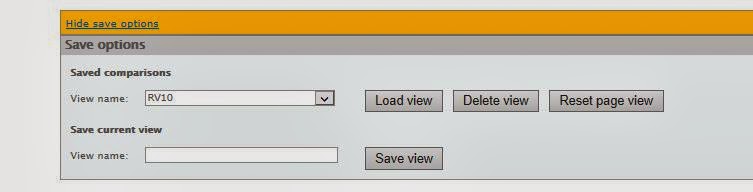
The Results > Group Comparisons page has a new tool which allows admins to capture and save results comparison charts.


The Results > Data page has new search and export options for capturing 'Skipped' question data:


The Results > Training Requirements page has 2 new tools which display charts for 'Training requests' and 'Skipped' questions:


At the end of a test session, a new advisory note displays, which confirms how many questions have been skipped:


We added some new options for creating dynamic groups on the Users and Results pages:


We added dynamic grouping to the Invites > History page:


Plus the ability to recreate existing dynamic groups in other areas of the system. For example, if you have an existing dynamic group on the Users page, you can now recreate the same group on the Results or Invite History pages. This tool can be found on the Settings > User Datafields page:


Admins can now check the progress of existing 'in progress' tests, by clicking on the new link in the Invites > History page:


We added a new filter on the Invites > History page which allows admins to display a sub-list of users who have not yet received any invites:


We added a new tool which allows admins to anonymise charts on the Results > Performance Spread and Results > Group Scores pages:


The following tasks are currently being tested in our staging area and will shortly be deployed to live:

The test start page has been tidied up and re-formatted.

We fixed a bug which caused tests to display an error if they contained more than 71 questions.

We added the ability to create more than one draft invite template on the Settings > Test Invite page.

We added rich text options, including HTML links, to the Test Invites page.

We added an advisory which is triggered if a user enters too many answers for pick list questions. It says: 'This question has a maximum of x correct answer choices'.

We are adding new options on the Results > Data page to filter and export the user data capture info (which is captured on the pages at the start and end of a test).

We are adding a new page called 'Module Performance', which allows admins to analyse results data on a per module basis.

We are adding new search options on the Accounts > Move Users page.


In addition to the system updates, we are also continuing to work on the KS library. All existing Autodesk titles are available in 2014 format. Plus the following: Vault, Civil 3D advanced, Revit MEP advanced, Revit MEP metric, AECOsim Building Designer, Blue Beam, Synchro and Tekla Structures,

Looking ahead, our summer dev list includes adding new question types and survey options. Followed by individual user dashboards. We'll keep you updated as this work progresses.

R